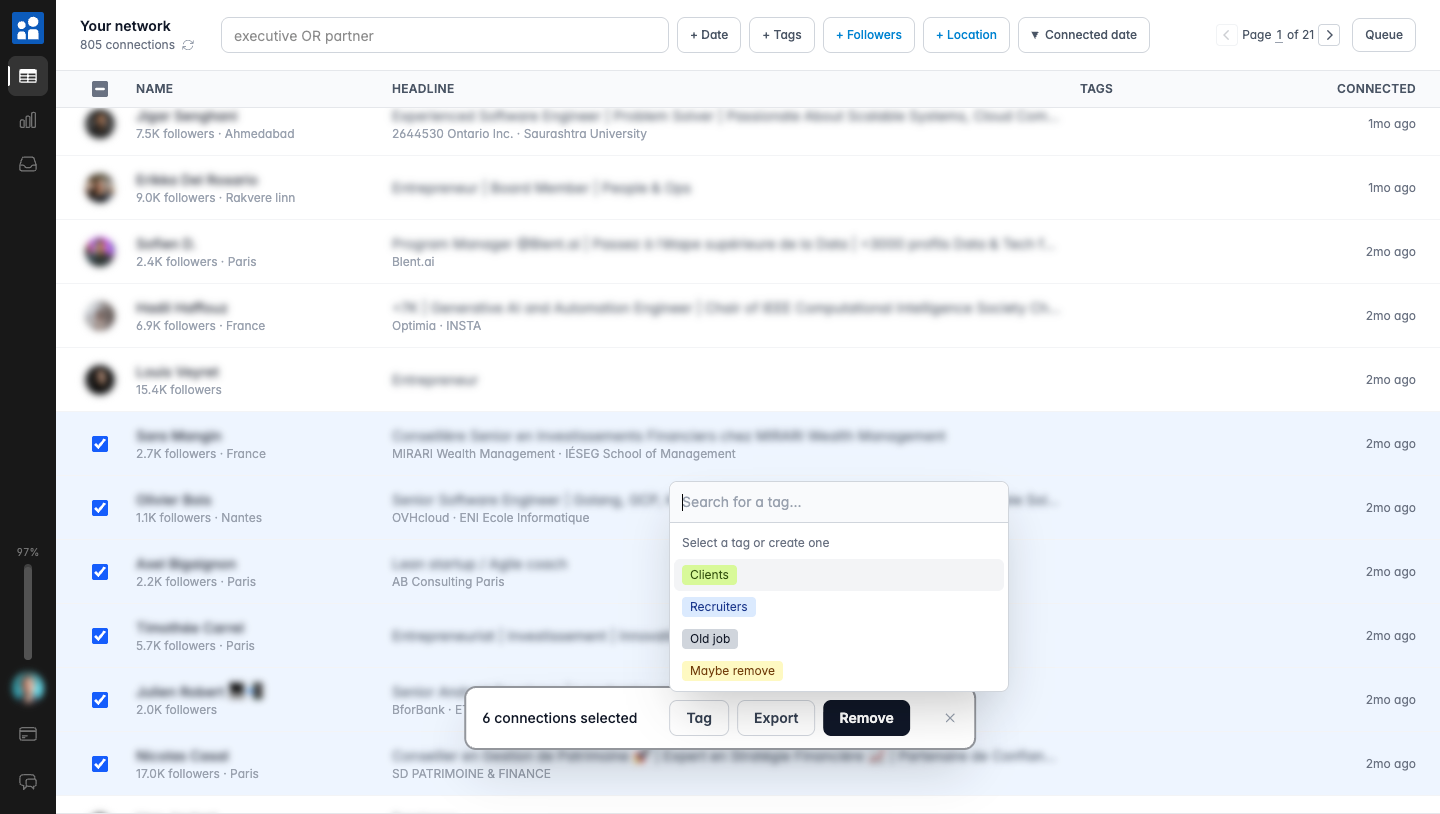
Not every cleanup is one big sweep. Sometimes you want to sort first: keep the clients, flag the recruiters, mark the people you are on the fence about, and deal with each group on its own time.
That is what tags are for. They let you label connections, then filter and act on a whole group at once.
1. Create a tag
Make a tag and give it a color. Use whatever buckets make sense for you: Clients, Recruiters, Old job, Events, Maybe remove. The colors make each group easy to spot when you are scanning the list.
2. Tag in bulk
Select connections the same way you would for removal: checkboxes, Shift+click for a range, or "select all matching" your filters. Then open the floating bar and drop a tag on the whole selection in one move.
Want to mark everyone from a company you left? Search the company name, select all, tag them "Old job." Done in seconds.
You can put more than one tag on a connection, and you can pull tags off in bulk the same way.
I tagged everyone from three old employers in one sitting. Now I clean them out whenever I feel like it, a group at a time.
3. Filter by tag
Once connections are tagged, the tag becomes a filter. Show everyone tagged "Maybe remove." Show everyone with no tag yet. Show everyone tagged "Clients" so you can make sure you never touch them by accident.
This pairs perfectly with cleanup. Tag the people you want gone across a few sessions, then remove the whole group when you are ready, instead of deciding person by person.
Your tags follow people into the Inbox
A tag belongs to the person, so it also shows on your conversations with them. You can tag someone right from their conversation in the Inbox, and it appears here on your connections too.
Why tag before you remove
The slow part of cleaning your network is not clicking. It is deciding. After 30 people you are second-guessing every choice, and you give up.
Tagging splits that into two easier jobs. First you decide who goes, with zero pressure because nothing is being removed yet. Later you remove a clean, already-reviewed group in one go. Decision fatigue, solved.
Tags are free
Creating tags, assigning them, and filtering your connections by them are all free. Filtering your inbox by tag comes with the Inbox subscription. Tag-based bulk actions and CSV export come with the paid tier, alongside unlimited removals.
Next: filter your LinkedIn inbox by tag and by whose turn it is.