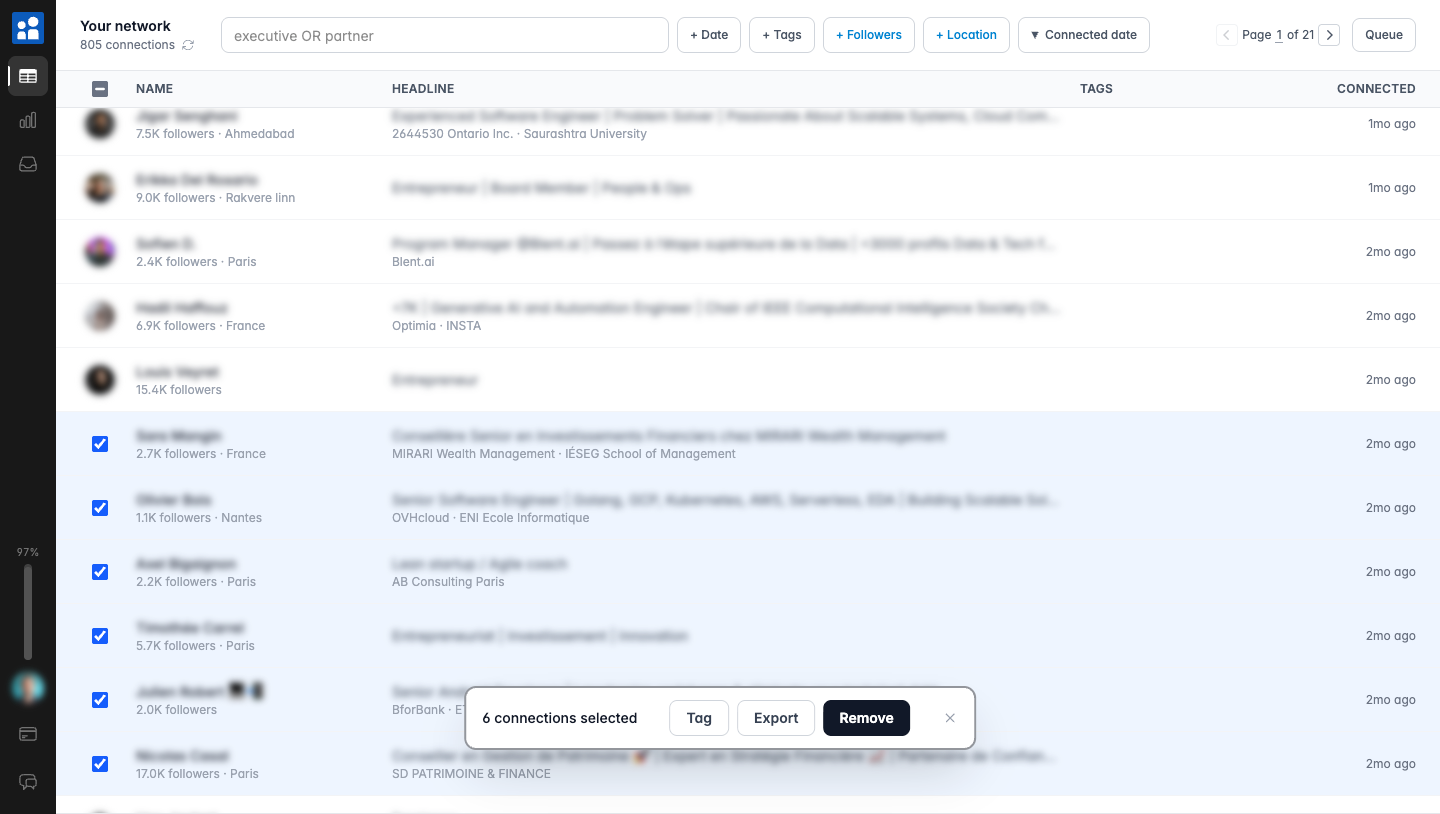
This is the hands-on workflow for cleaning your network with Network Cleaner, from finding the right people to closing the tab and letting removal run.
New to the idea, or still deciding whether to do it? Start with how to bulk remove LinkedIn connections, which covers the why, the manual method, and account safety. Once you have the extension, this page is your map.
1. Find who no longer matters
Start with search. Type a name, company, school, or headline. Network Cleaner filters in real time and highlights the matches.
For bigger sweeps, use operators:
recruiter OR headhuntercatches both.-salesdrops anything with "sales" in it."chief of staff"matches that exact phrase.
Then narrow with filters. A few that tend to surface the noise fast:
- Old connections. Filter by connection date to find everyone you added years ago and forgot about.
- Past industries. Search a former employer or field you have left behind.
- Far-flung strangers. Filter by location to catch the random requests you accepted from the other side of the world.
- Low follower count. Often the accounts that went inactive and never came back.
2. Select in bulk
Once your list is filtered down, select. Three ways:
- Tick individual checkboxes.
- Hold Shift and click to grab a range, like selecting files.
- Use "select all matching" to grab everyone across every page that fits your filters.
A floating bar appears with your count and three actions: Tag, Export, and Remove. You always see exactly how many people you picked before anything happens.
I filtered to one old employer, hit select all, and had 600 people queued in about ten seconds.
3. Review, then remove
Click Remove and Network Cleaner shows you the selection one last time. Look it over, deselect anyone you are not sure about, and confirm when it reads right.
Confirming does not commit you to the whole list. Removals go one at a time, and anyone still waiting their turn can be cancelled.
4. Close the tab and let it run
Removal goes through a queue. The extension works through it one connection at a time, with smart delays between each, so the activity looks like someone working through a list rather than a script. No bursts, no spikes.
That does mean it is not instant, and it is not meant to be: budget about three days per 1,000 connections. Close the tab. Do something else. It keeps going as long as your browser is open, and picks up where it left off if you restart. Pause whenever you want.
What if you remove someone you wanted to keep?
Before a removal happens, you can cancel it in the queue. After it happens, Network Cleaner keeps a history of everyone you removed, so you can find their profile and reconnect. Nothing is lost for good.
For the rest of the common questions, like whether people get notified, whether it is safe, and how the manual method compares, the bulk remove guide covers them in full.
Ready to clean house
Browsing and filtering are free, so you can build your whole selection before paying anything. You only pay when you are ready to remove.
Next: organize your network with tags to plan bigger cleanups.