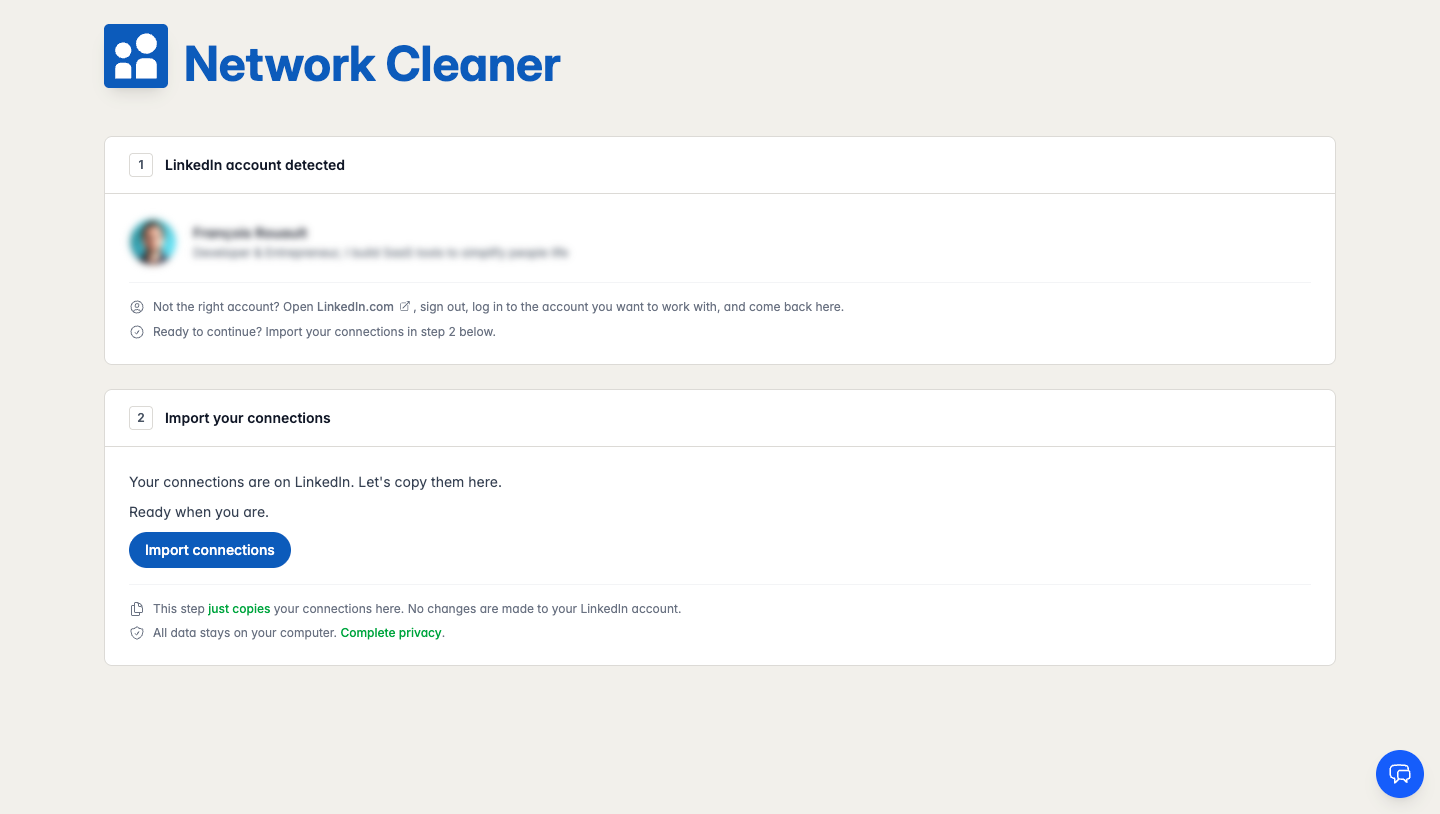
Most LinkedIn tools want an account, a password, and a tour before they do anything useful. Network Cleaner wants about a minute. Install it, let it find your LinkedIn account, import your connections, and you are looking at your whole network in one view.
Here is the whole thing, start to finish.
1. Install from the Chrome Web Store
Install Network Cleaner from the Chrome Web Store. It works on any Chromium browser: Chrome, Brave, Edge, Arc, and the rest.
The extension opens on its own once it is installed. No account to create, no email to confirm.
2. It finds your LinkedIn account on its own
Network Cleaner reads from the LinkedIn session you are already logged into. You will never type a LinkedIn password into the extension, because it never asks for one.
Not logged in? Log into LinkedIn once in a normal tab and Network Cleaner picks it up from there.
3. Import your connections
Click Import. Your full connection list loads straight from your existing session. A few seconds for a small network, about a minute for a big one.
When it is done, every connection is in front of you at once. No more clicking through 10 people at a time.
Setup was the part I dreaded. Turned out to be one click and a short wait.
4. That's it. Now you can actually use your network
Once your connections are in, everything opens up:
- Browse and search your whole network at once.
- Filter by company, school, location, connection date, or follower count.
- Tag connections to organize them.
- See your stats: where your network lives, how it has grown, who has the most followers.
Browsing, searching, filtering, and tagging are free. You only pay when you are ready to bulk remove connections or export to CSV.
Your connections stay on your computer
Everything Network Cleaner imports stays in your browser and is never uploaded. It works offline, and it re-imports your connections in the background every day, so new ones show up on their own.
That is the whole setup. Ready to put it to work? Start with how to clean your network.