Removing LinkedIn connections one by one is painfully slow. Each removal takes 3 clicks (More, Remove connection, Confirm), and if you have hundreds or thousands of connections to clean up, you're looking at hours of repetitive work.
One user described it perfectly:
This would save me literal HOURS of mindless cleanup.
The good news? You can hand the whole job off in about five minutes and stop thinking about it.
This guide shows you two methods: the manual way (for small cleanups) and the hands-off way using Network Cleaner (for bulk removal).
Why Clean Up Your LinkedIn Network?
Before diving into the how, here's why people remove connections:
- Improve your feed quality - Fewer irrelevant posts from people you don't know.
- Make room for valuable connections - LinkedIn has a 30,000 connection limit. Hit it, and you can't add anyone new.
- Align your network with your current career - Remove connections from past industries or roles that no longer serve you.
- Reduce noise - A smaller, focused network is more useful than a bloated one.
Method 1: Manual Removal (The Slow Way)
LinkedIn doesn't make it easy to remove connections. There's no bulk option built in, just a tedious connection-by-connection click-by-click process.
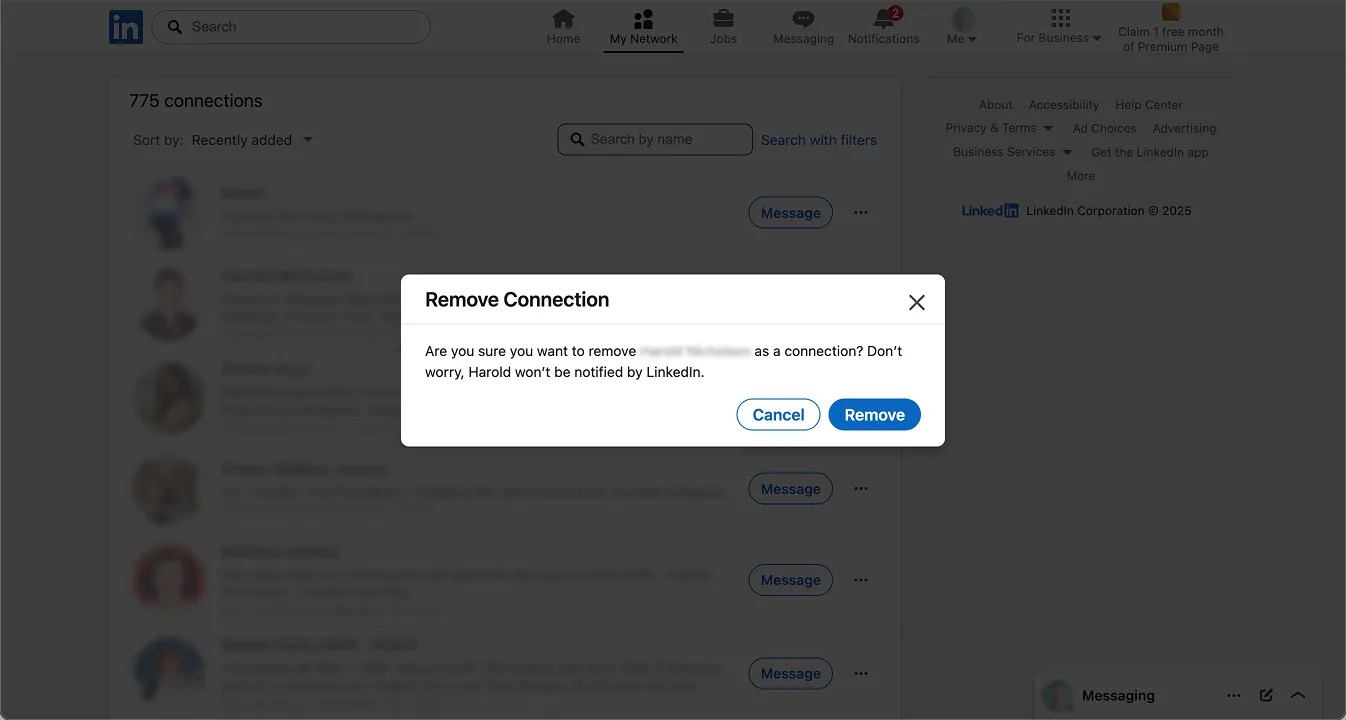
If you only need to remove a handful of connections, the manual method works:
- Go to My Network > Connections
- Find the person you want to remove
- Click More (•••) next to their name
- Select Remove connection
- Confirm the removal
Time estimate: About 15 seconds per connection once you factor in scrolling to find them and deciding. For 500 connections, that's over 2 hours of clicking, all of it yours.
This method makes sense if you're removing fewer than 20 connections. Beyond that, you need a better approach.
Method 2: Automated Removal with Network Cleaner (The Hands-Off Way)
Network Cleaner is a Chrome extension that lets you search, filter, and remove thousands of LinkedIn connections at once.
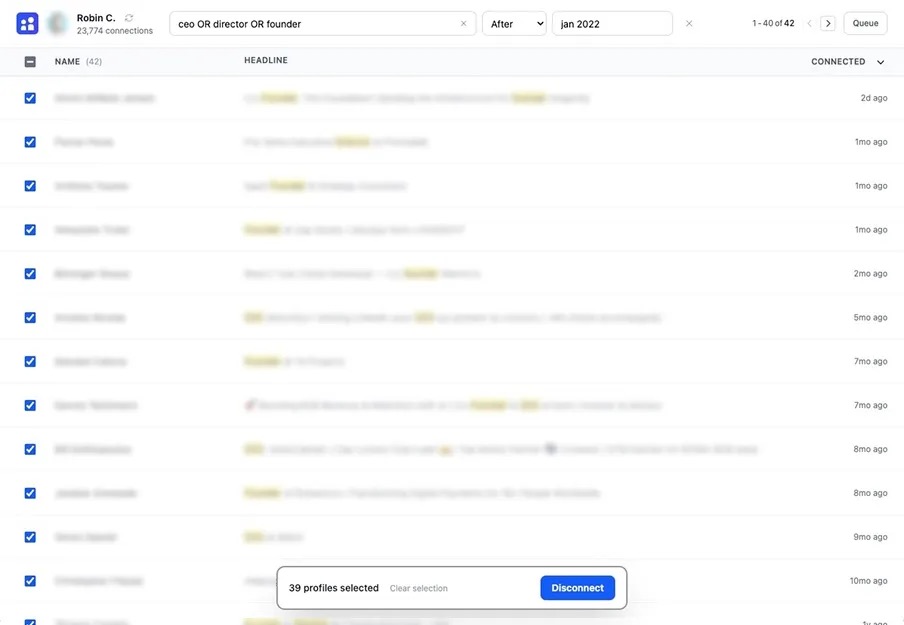
Here's how to bulk remove LinkedIn connections in four simple steps:
Step 1: Install and Import
Install Network Cleaner from the Chrome Web Store. Open the extension, it automatically detects your LinkedIn account (no password needed, ever). Click the import button to load your connections. This takes a few seconds depending on your network size.
Step 2: Search and Filter
Use the search bar to find connections you want to remove:
- Search by text: Name, job title, company, or headline
- Use advanced search syntax:
recruiter OR headhunterfinds both terms - Exclude terms:
-salesremoves results containing "sales" - Filter by date: Find connections added before, after, or within a specific date range
Step 3: Select and Remove
Check the boxes next to connections you want to remove, or use Select All to grab everyone matching your search. Click Remove to start.
Tip: Hold Shift and click to select a range of connections at once, like selecting files in a folder.
Step 4: Let It Run
Network Cleaner removes your connections automatically in the background, one at a time with smart delays between each. Close the tab and it keeps working. Pause anytime if needed.
Plan for roughly three days per 1,000 connections. The queue only advances while your browser is open, so it pauses when your machine sleeps and picks up where it left off. Nothing is lost, it just waits.
Who Should Clean Their LinkedIn Network?
- Hitting the 30K limit - You can't add new connections until you remove old ones. This is the only way to unlock your network.
- Career changers - Your old industry contacts may no longer be relevant. Start fresh with connections that match your new direction. Not sure which ones to keep? Here's how to decide.
- Job seekers - A focused network helps you stand out to recruiters and improves your feed with relevant opportunities.
- Anyone with too many connections - Years of accepting every request adds up. Time to clean.
Frequently Asked Questions
Is it safe to bulk remove LinkedIn connections?
Removing a connection is an ordinary LinkedIn action with no published limit. The risk isn't the action, it's the pace: LinkedIn looks for patterns that don't look human, like hundreds of actions in a few minutes.
Network Cleaner sends one removal at a time with smart delays, so the activity never looks automated. So far that's 65,000+ connections removed, and LinkedIn has never once rate-limited, blocked or CAPTCHA-ed one.
Nobody outside LinkedIn can promise you how LinkedIn will treat an account, so what we offer is a mechanism and a track record rather than a guarantee. Here's how we know.
How do I remove connections without getting flagged?
Pace matters more than volume. Spreading 2,000 removals over a week is far safer than 200 in an hour, and Network Cleaner enforces that spacing for you rather than trusting you to remember it.
There's a second, less obvious detail. If you remove people by working through their profiles, which is how most people do it when they're checking who someone is before cutting them, each visit registers as a profile view and can tip them off. Some then re-add you. Network Cleaner never opens the profile to remove someone, so there is no view for them to see.
Will people know I disconnected from them?
No. LinkedIn doesn't notify people when you remove them as a connection.
How many connections can I remove?
As many as you want. Network Cleaner works through your list one at a time, so there's no hard limit.
Can I undo a removal?
Depends on timing:
- Before it happens: Yes. Network Cleaner processes disconnections one by one, so you can cancel any planned removal before it's executed.
- After it's done: No. Once someone is removed, it's permanent. But Network Cleaner keeps a history of everyone you've removed, so you can find their profile and reconnect if needed.
Is my data safe?
Yes. Your connections, tags, and messages stay in your browser. Network Cleaner never uploads them.
Will removing a connection clean up my feed?
Mostly. Removing a connection also unfollows them, so their posts stop arriving in your feed directly. They can still reach you indirectly, when someone you follow reshares or comments on their post. Cutting the people you never engage with is what makes the difference over time.
Ready to Clean Your Network?
Stop spending your own hours clicking one connection at a time. Install Network Cleaner, browse and filter your connections for free, then let the extension work through the list in the background. Only pay when you're ready to remove.
Already installed? Follow the step-by-step cleanup workflow to find who no longer matters and remove them in bulk.