You tried to connect with someone on LinkedIn. Instead of the usual "Connect" button, you see... nothing. Or worse, an error message.
You've hit LinkedIn's 30,000 connection limit.
This hard cap means you can't add anyone new until you remove existing connections. No exceptions. No workarounds. Just a wall between you and growing your network.
This guide explains what happens when you hit the limit, why it exists, and the only proven way to get past it without wasting hours of manual clicking.
What is the 30,000 Connection Limit?
LinkedIn caps every account at exactly 30,000 connections. Once you hit this number, you cannot:
- Send new connection requests
- Accept incoming connection requests
- Add anyone to your network in any way
This limit has been in place since 2011 and applies to every account type. Premium, Sales Navigator, and Recruiter accounts all face the same 30,000 cap.
Most LinkedIn users never encounter this problem. The average user has around 400 connections. But if you're a heavy networker, recruiter, or someone who's been on LinkedIn for years accepting most requests, you'll eventually hit this ceiling.
Why Does LinkedIn Have This Limit?
LinkedIn has never officially explained the 30,000 cap. Common theories include keeping connection graphs fast to query and making it harder for spam accounts to connect with everyone. Whatever the reason, the limit has been in place since 2011 and LinkedIn shows no signs of changing it.
What Happens When You Hit the Limit?
Once you reach 30,000 connections, LinkedIn blocks all new connection activity:
You can't send connection requests
You can't accept incoming requests
Everything else still works. You can still message your existing connections, post content, comment, gain followers, and engage normally. The limit only affects adding new connections.
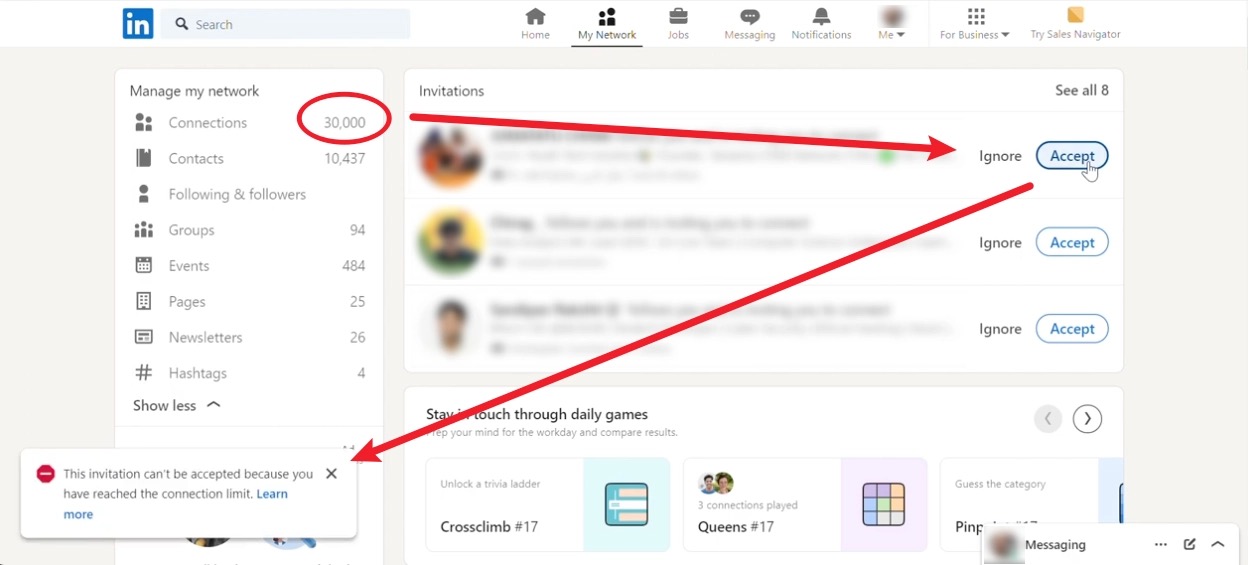
The bottom line: You're locked out of expanding your network until you make room.
Common Workarounds (That Don't Actually Work)
People hitting the 30K limit try everything to get around it. None of it works:
❌ Upgrading to LinkedIn Premium
Premium subscriptions don't increase the connection limit. You get InMail credits and other features, but still cap at 30,000 connections.
❌ Getting Sales Navigator
Sales Navigator has the same 30,000 connection limit as free accounts. It helps you find prospects but doesn't let you exceed the cap.
❌ Waiting for the limit to reset
The limit never resets. It's cumulative and permanent. Time doesn't fix this problem.
❌ Creating a second LinkedIn account
LinkedIn's Terms of Service prohibit multiple personal accounts. This violates their rules and risks getting both accounts banned.
✅ The only solution that actually works
Remove connections to make room for new ones. It's the only legitimate way to get past the 30,000 limit.
LinkedIn doesn't offer a bulk removal tool, which brings us to Network Cleaner.
How to Bulk Remove LinkedIn Connections
Manual removal is a nightmare. As one user put it:
I spend a huge lot of time deleting connections manually, a terrible waste of time.
Each connection takes 3 clicks to remove. For 5,000 connections, that's 15,000 clicks and over 20 hours of repetitive work.
Network Cleaner does the whole thing for you, one removal at a time.
Here's how:
- Install Network Cleaner - Get it free from Chrome Web Store. Browse and search your connections for free.
- Import Your Connections - Click "Import" and Network Cleaner loads your LinkedIn connections in seconds. Everything stays local in your browser.
- Search and Filter - Use the search bar to find connections to remove by job title, company, connection date, or any combination.
- Select and Remove - Check boxes next to connections you want to remove, or click "Select All." Then click "Remove".
- Let It Run - Network Cleaner processes removals automatically with smart delays between each that mimic human behavior.
How long does it take:
- Import connections: Less than 1 minute
- Search and select: 2-5 minutes of your time
- Processing: Runs on its own in the background, about three days per 1,000 connections
So removing 5,000 connections costs you about five minutes of your own time, against more than 20 hours by hand. The extension does the waiting in the background.
For a complete walkthrough with screenshots, check out our step-by-step guide to bulk removing LinkedIn connections.
How to Choose Which Connections to Remove
Removing connections when you're at 30K means making strategic decisions. Here are five proven strategies:
Strategy 1: Remove people you've never interacted with
Look for connections you've never messaged, whose posts you've never engaged with, and who don't engage with yours. These are pure noise in your network.
Strategy 2: Remove connections from past career phases
Changed industries? Switched from finance to tech? Your network should reflect your current professional direction, not your entire career history.
Strategy 3: Remove recruiters and salespeople
If you're not actively job hunting or buying their services, most recruiter and sales connections add noise without value. Keep the good ones, remove the rest.
Strategy 4: Remove inactive accounts
Many LinkedIn profiles haven't been touched in years. If someone hasn't posted or updated their profile since 2019, they're probably not getting value from the platform.
Strategy 5: Use date-based filtering
Remove connections added before a certain date. For example, anyone you connected with more than 5 years ago who doesn't match your current goals.
Network Cleaner makes all of these strategies easy with powerful search and filtering tools. You can search by job title, company, connection date, or any combination of factors to find exactly who to remove. For a more detailed breakdown of who to keep and who to cut: when to remove LinkedIn connections (and when to keep them).
After You Remove Connections
Once you've removed enough connections to drop below 30,000, you can immediately:
- Send new connection requests
- Accept incoming requests
- Grow your network again
Will removed people know?
No. LinkedIn doesn't notify people when you disconnect from them.
Can you reconnect later?
Yes. Network Cleaner keeps a history of everyone you've removed, making it easy to find their profile and send a new connection request if needed.
Does your feed improve?
Yes. Most people notice their feed gets dramatically better after removing inactive or irrelevant connections. Less noise, more signal, fewer posts from people you forgot you even connected with.
Frequently Asked Questions
Will removing connections hurt my LinkedIn account?
Removing a connection is a normal LinkedIn action with no published limit, so the action itself isn't the concern. Pace is, which is why Network Cleaner removes one person at a time with smart delays. More on the track record in "Will LinkedIn ban my account for bulk removing?" below.
Can I remove all 30,000 connections at once?
Technically yes, but we don't recommend it. Be strategic about who you remove. Keep valuable connections and cut the noise.
How much does Network Cleaner cost?
$0.003 per connection with a $5 minimum. It's a one-time payment that unlocks unlimited removals forever for your LinkedIn account. See pricing details.
What if I accidentally remove someone important?
You can cancel any planned removal before it happens. After removal, Network Cleaner keeps a history so you can find their profile and reconnect if needed.
Is there a faster way than Network Cleaner?
No, not if you count your own time. Five minutes deciding who goes, then you close the tab and forget it. Removing 5,000 people by hand is over 20 hours of your attention.
On the calendar it is slower, on purpose. Removals are spaced out instead of fired off back to back, so a list that size runs for a couple of weeks in the background. You never have to watch it.
Will LinkedIn ban my account for bulk removing?
Nothing in our data suggests it. So far, we've removed 65,000+ connections and LinkedIn has never rate-limited, blocked or CAPTCHA-challenged one of them. The smart delays between removals are what keep the pattern unremarkable.
Worth knowing before you weigh that: LinkedIn's moderation decisions are LinkedIn's alone, so anyone promising you an outcome there is guessing. How we know.
Can I pause the removal process?
Yes. Click Pause anytime. The extension auto-resumes when you reopen your browser, or you can manually resume whenever you want.
Do I need to keep the browser open?
You can close the tab, but Chrome itself needs to be running. The queue advances in the background whether or not Network Cleaner is on screen, and it stops while your computer sleeps or your browser is shut, then picks up exactly where it left off. Nothing in the queue is lost, it just waits.
Make Room on Your LinkedIn Network
The 30,000 connection limit is real, and it's not going away. The only fix is removing old connections to make room for new ones.
Don't waste weeks clicking through removals manually. Install Network Cleaner, browse and search your network for free, then let the extension handle the rest. Only pay when you're ready to remove.