Three steps
Install the extension, pick who to remove, hit Remove. A few minutes of your time. The extension handles the rest in the background while you do something else.
Step 01
Install the extension
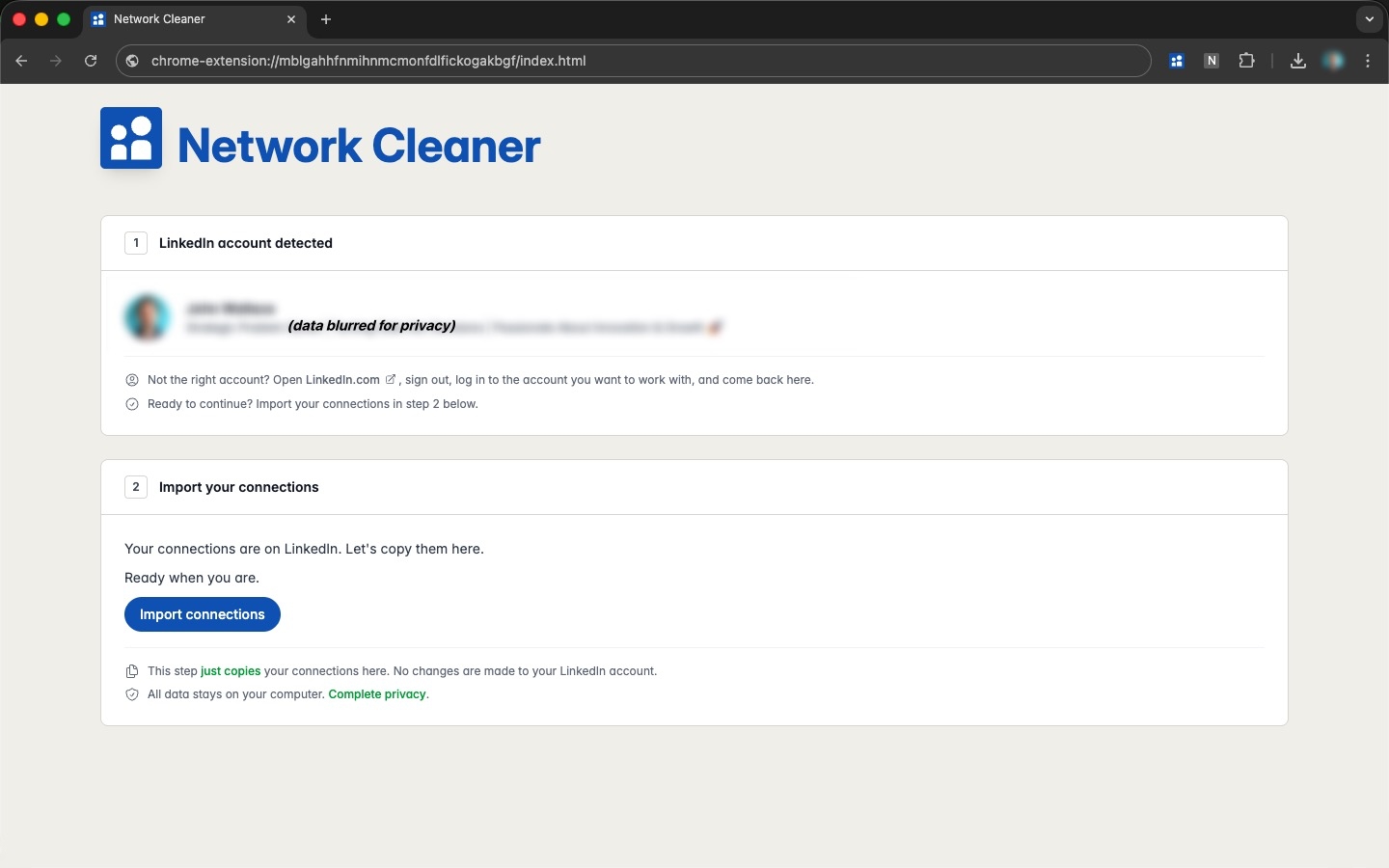
Install Network Cleaner from the Chrome Web Store. The app opens automatically. Click Import and the extension reads your connections straight from your existing LinkedIn session. No password prompt.
Importing takes anywhere from a few seconds to about a minute, depending on your network size. When it finishes, your full connection list is ready to browse.
- Installs from the Chrome Web Store in one click
- Uses your existing LinkedIn session, no password needed
- All data stored locally in your browser
- New connections appear automatically
Step 02
Search, filter, and select who to remove
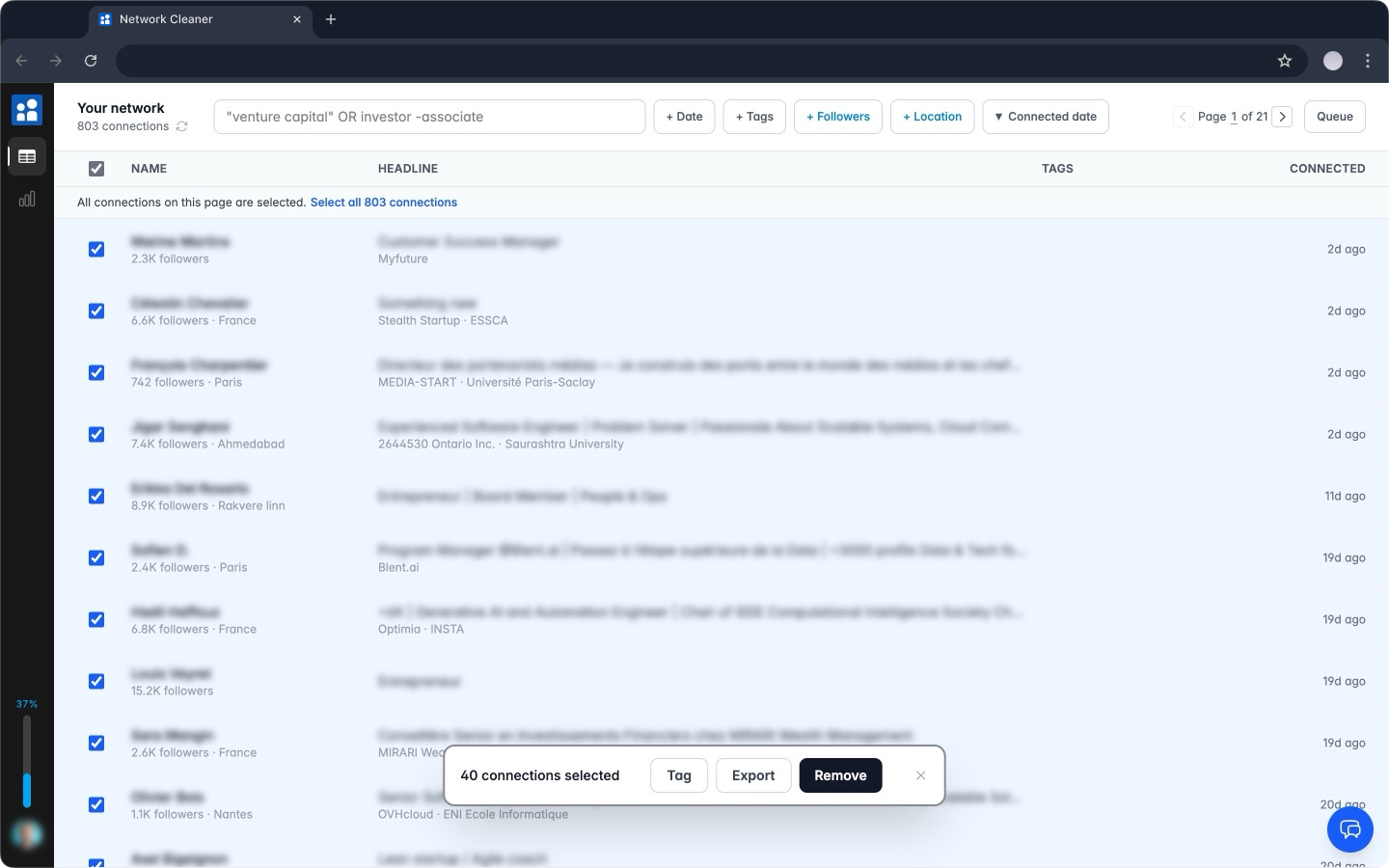
Use the search bar to find connections by name, company, school, or headline. Add filters for connection date, follower count, or location to narrow things down. Then select: individual checkboxes, shift+click ranges, or select all connections matching your filters at once.
You see exactly who you've picked and how many, before anything starts.
- Search by name, company, school, or headline
- Filter by connection date, follower count, location, or tag
- Sort by name, headline, connection date, or follower count
- "Select all" or Shift+click to select a range
Step 03
Hit Remove, close the tab
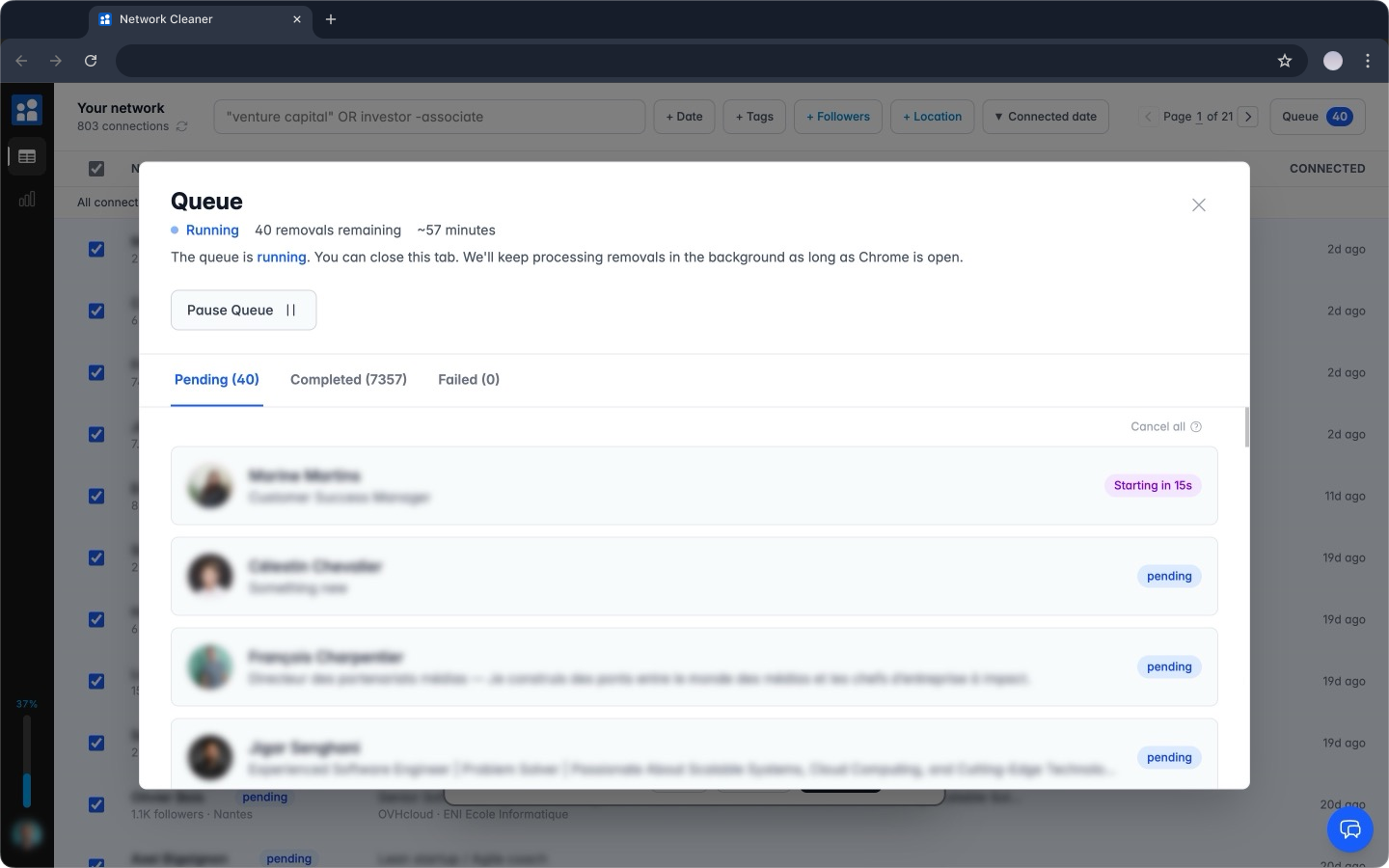
Network Cleaner starts working through your selection one connection at a time. Smart delays between each removal mean LinkedIn sees normal activity, not automation.
Close the tab. Do other things. Come back in a few hours to a cleaner network. Pause anytime if you change your mind.
- Runs in the background, tab can be closed
- Smart delays between each removal keep your account safe
- Pause anytime, auto-resumes when you reopen Chrome
- Removal history saved so you can reconnect if needed
Why not just do it manually?
LinkedIn gives you no bulk removal. Every connection is a separate trip: open the profile, click More, click Remove Connection, confirm. Repeat. About 10 seconds per person if you never hesitate. You will hesitate. Most people give up after 30.
Manual removal
- Open each profile. Click through 3 menus. Confirm. Repeat.
- No bulk select, no filters worth using
- 10 seconds per connection, if you never hesitate
- Most people give up after 30
Network Cleaner
- Search and filter by name, date, location, followers
- Select all matching, or shift+click a range
- Remove thousands of connections in a few clicks
- Runs in the background while you do other things
Common questions
Is my LinkedIn account safe?
Yes. Network Cleaner performs the exact same actions you'd make manually, one connection at a time, at a human rate. LinkedIn sees normal human behavior.
Can I close my browser?
Close the Network Cleaner tab anytime. But keep Chrome open: removals only process while your browser is running. That's intentional. LinkedIn sees activity during your normal computer hours, not a bot working at 3am. Close Chrome and it pauses. Reopen it and it picks up where it left off.
What if I remove someone I wanted to keep?
Before anything gets removed, you see the full list of who you've selected. Check it over. Deselect anyone you're not sure about.
Once it starts, removals happen one by one. You can cancel anyone still waiting, or pause the whole thing, at any time. You stay in control throughout.
No matter what, Network Cleaner keeps a full history of everyone you've removed. Find them, hit reconnect, done.
Ready to clean up your network?
Free to install. Browse and search your connections before paying anything.